Use the Play Cutscene Sequence node to play a ULevelSequence as a CCS-managed cutscene — the plugin handles context pushing, camera cuts, inter-context transitions, and cleanup automatically. The sequence's own CameraCut track drives which camera is active at any moment, and each LS camera is wrapped into a CCS proxy camera so it blends cleanly with gameplay cameras and participates in the composable pipeline.
This tutorial assumes you have a gameplay camera running (the Follow Camera tutorial produces one) and a ULevelSequence authored in Sequencer with at least one CineCameraActor and a CameraCut track. If you haven't used Sequencer before, the Unreal documentation covers creating a level sequence and adding a camera cut track.
0. What we're actually building
From the player's perspective: they step into a trigger, the camera smoothly blends from their third-person view into a pre-authored cinematic shot (a dolly move, a crane sweep, a multi-camera edited sequence — whatever the LS contains), plays to completion, then blends back to gameplay.
From the system's perspective:
- Blueprint calls Play Cutscene Sequence, which pushes a cutscene context onto the CCS context stack.
- The LS player starts. Each CameraCut section in the sequence fires
SetViewTargeton the PCM, which creates a transient proxy camera and activates it in the cutscene context — with CCS transitions converted fromFViewTargetTransitionParams. - The gameplay camera continues evaluating live underneath (reference leaf), so the return blend is seamless.
- When the sequence finishes, the action pops the cutscene context automatically, triggering an inter-context transition back to gameplay.
You don't manually create camera type assets or wire context pushes — Play Cutscene Sequence handles all of that.
1. Author the level sequence
If you already have a suitable level sequence, skip to step 2. Otherwise:
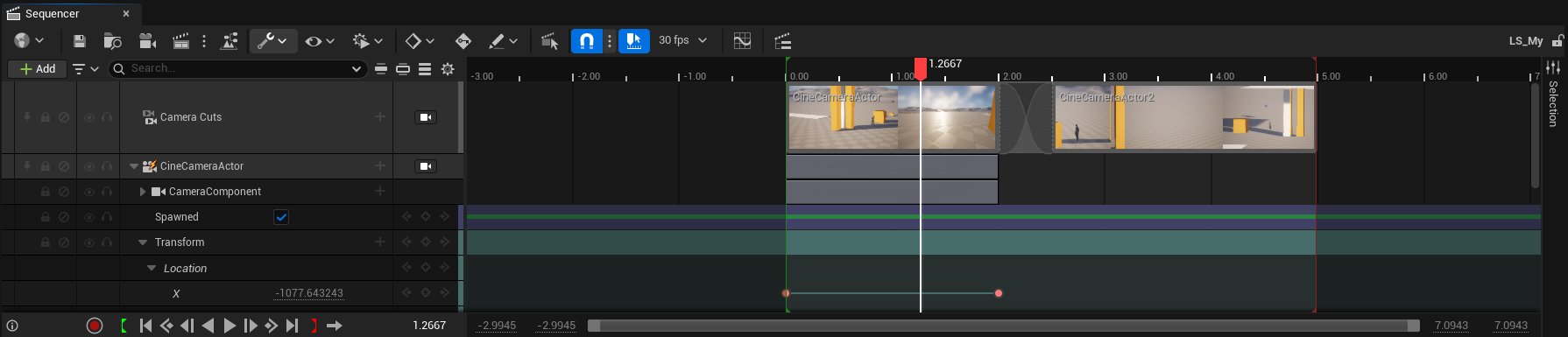
- Content Browser → right-click → Cinematics → Level Sequence. Name it
LS_HeroIntro. - Open it in Sequencer. Click the camera icon ("Create a new camera and set it as the current cut") — this creates a
CineCameraActorbinding with transform and camera component tracks. - Keyframe the camera's transform over your desired duration. For this tutorial, a simple 3-second dolly from left to right works fine.
- Add a CameraCut track (if one wasn't created automatically) and assign your
CineCameraActorto it. The CameraCut track tells the engine which camera is active at each point in the sequence — this is how CCS knows which camera to activate. - Save and close Sequencer.
Multi-camera sequences
You can have multiple CineCameraActors in one level sequence. Add CameraCut sections for each one, and the engine will fire SetViewTarget at each cut boundary. CCS converts each cut into a proxy camera activation with a transition — so multi-camera edited sequences work automatically.
2. Wire up the Blueprint
The Play Cutscene Sequence K2 node is the single entry point. It takes care of context pushing, LS playback, and cleanup.
Activation (trigger enter)
In a trigger actor's OnComponentBeginOverlap:
On Trigger Overlap Begin
  └─> Play Cutscene Sequence
        Level Sequence:      LS_HeroIntro
        Context Name:        Cutscene
        Enter Transition:    (optional) a TransitionDataAsset for the gameplay→cutscene blend
        Playback Settings:   (default is fine for most cases)
      ├─ Cutscene Action ──> (cache in a variable if you need to stop early)
      └─ On Finished ──> (fires when the sequence ends naturally)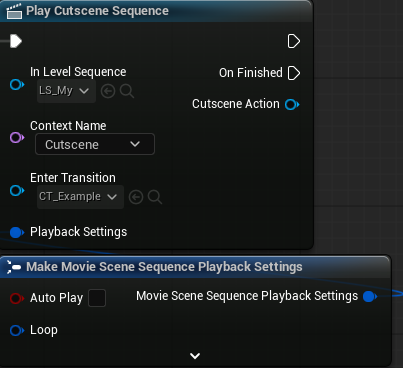
That's it — one node. The action:
- Pushes a
Cutscenecontext onto the CCS context stack (with the gameplay camera live underneath via reference leaf). - Creates a
ULevelSequencePlayerand starts playback. - When the LS's CameraCut track fires, the PCM's overridden
SetViewTargetcreates proxy cameras in the cutscene context with appropriate transitions. - When the sequence finishes, pops the cutscene context and cleans up.
Stopping early
If you need to stop the sequence before it finishes (e.g. the player presses a skip button), call Stop Cutscene Sequence on the cached Cutscene Action:
On Skip Button Pressed
  └─> Stop Cutscene Sequence
        Target:              (the cached Cutscene Action)
        Exit Transition:     (optional) a TransitionDataAsset for the cutscene→gameplay blend
This stops playback, pops the cutscene context, and triggers the inter-context transition back to gameplay.
Hold on last frame
If you want the camera to hold on the sequence's last frame after playback ends (e.g. for a dialogue UI that appears after the intro shot):
- In the Play Cutscene Sequence node, expand Playback Settings and set
bPauseAtEnd = true. - The On Finished exec pin still fires when the sequence reaches its end — use it to show your UI.
- When the player dismisses the UI, call Stop Cutscene Sequence to tear down the cutscene context.
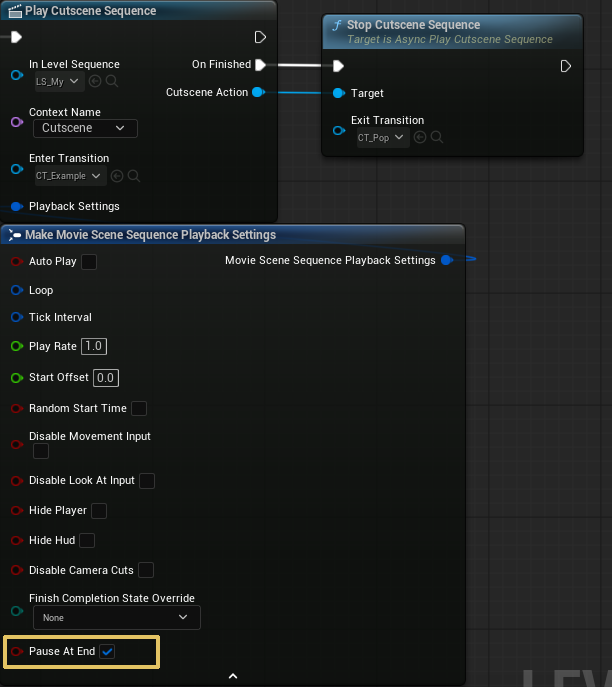
With bPauseAtEnd = true, the sequence player pauses on the last frame and the cutscene context stays alive, so the camera holds its final pose until you explicitly stop.
3. Context name setup
Make sure the context name you pass to Play Cutscene Sequence is declared in Project Settings:
Project Settings → ComposableCameraSystem → Context Names. Add Cutscene if it isn't already there:
Context Names
  - Gameplay        (base context — always index 0)
  - Cutscene
The context name dropdown on the K2 node is sourced from this list.
4. Play and verify
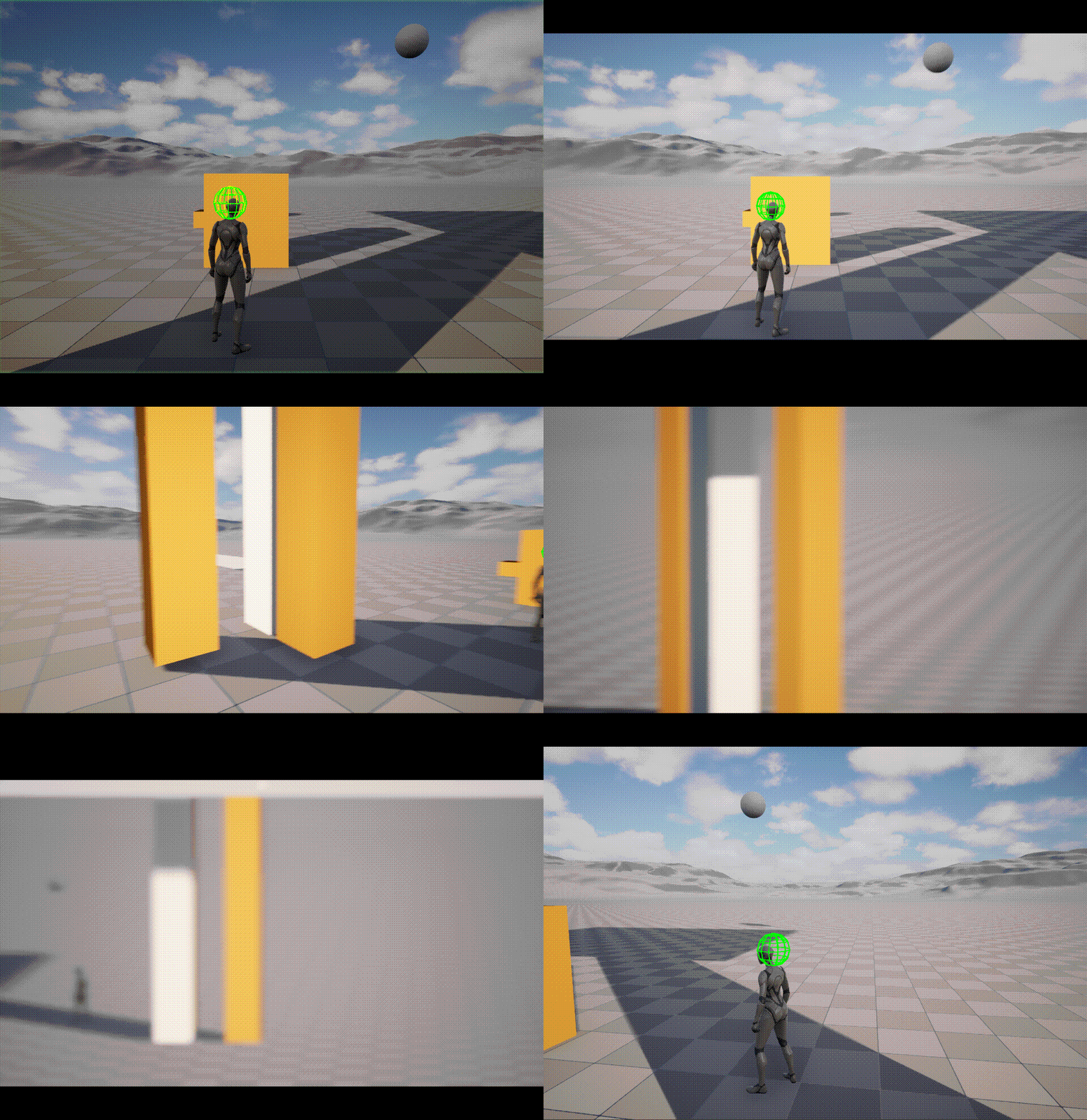
Enter PIE. Walk into the trigger. You should see:
- A smooth blend from the gameplay camera into the first LS camera's position (the inter-context transition from gameplay to cutscene).
- The sequence plays — the camera follows the keyframed motion. If the sequence has multiple CameraCut sections, each cut transitions smoothly between LS cameras.
- When the sequence finishes, the cutscene context pops and the camera blends back to gameplay — which has been tracking the character the entire time.
Open showdebug camera or enable CCS.Debug.Panel 1. During the sequence:
Context Stack (depth 2)
  [1] Cutscene     ← active
  [0] Gameplay
5. Enter and exit transitions
The Enter Transition pin on the K2 node controls the inter-context blend from gameplay into the cutscene. Pass a UComposableCameraTransitionDataAsset — an InertializedTransition with TransitionDuration = 0.6 is a good default. Inertialized preserves the gameplay camera's velocity at the blend start, avoiding a visible kink.
The Exit Transition pin on StopCutsceneSequence controls the blend back to gameplay when the cutscene ends. If left empty, the system falls back to the resume camera's default enter transition via the five-tier resolution chain.
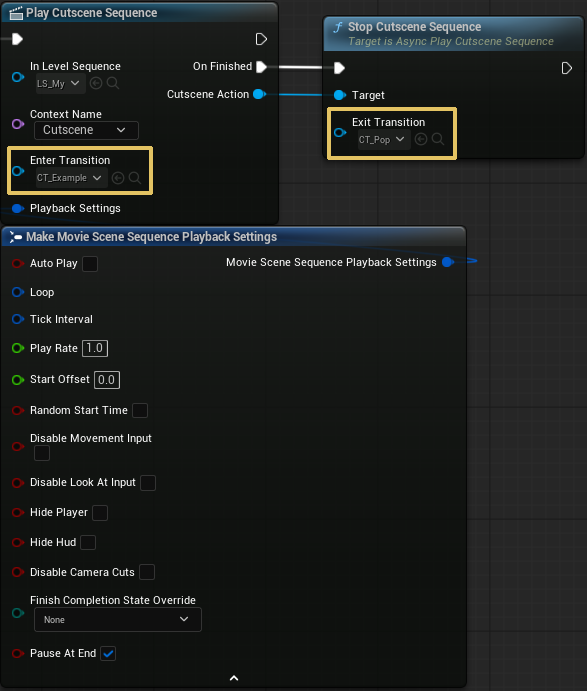
For sequences that end naturally (not via StopCutsceneSequence), the exit transition comes from the resolution chain — typically the gameplay camera's EnterTransition.
6. Infinite loop sequences
For sequences that should loop indefinitely (e.g. an ambient camera in a menu screen), set LoopCount = -1 in Playback Settings. The On Finished pin will never fire. Call Stop Cutscene Sequence when you're ready to leave.
Common pitfalls
- Sequence plays but camera doesn't change. The level sequence has no CameraCut track. The CameraCut track is what fires
SetViewTargeton the PCM — without it, CCS doesn't know about the LS cameras. - Camera snaps instead of blending at sequence start. No
Enter Transitionwas provided, and the gameplay camera has no defaultEnterTransition. Pass aTransitionDataAssetto the Enter Transition pin. - Gameplay camera snaps on return. The gameplay camera wasn't evaluating during the cutscene — this happens if the PCM isn't a
AComposableCameraPlayerCameraManager(the reference leaf mechanism requires it). Verify the plugin setup. - Context name not found. The context name passed to the node isn't declared in Project Settings → Context Names. Add it.
- Sequence doesn't stop on skip. You didn't cache the Cutscene Action output pin. Store it in a variable so you can call
StopCutsceneSequencelater. - Camera holds after sequence ends.
bPauseAtEnd = truein Playback Settings keeps the cutscene context alive. CallStopCutsceneSequenceto tear it down, or setbPauseAtEnd = falsefor automatic cleanup.
Where next
- Cutscene Context — manual context pushing with a hand-authored camera type asset, for cases where you want full control over the cutscene camera's node composition.
- Concepts → Context Stack — full conceptual model for context pushing and inter-context blending.
- Blueprint API — reference for
Activate Camera, `TerminateCurrentCam