The Concepts → Transitions page covers what a transition is — a pose-only blender with a four-phase lifecycle, velocity-aware via InitParams, resolved through a five-tier priority chain. This page is about the authoring side: picking the right transition for a given cut, configuring duration and easing, and populating the transition table for pair-specific routing.
Picking a transition
The plugin ships a set of built-in transition classes. Rough guidance:
| If you want… | Use | Why |
|---|---|---|
| A physically-plausible blend that respects the source camera's velocity | InertializedTransition |
5th-order polynomial blend; initial velocity recovered from (Current − Previous) / DeltaTime; arrives at target with zero velocity and zero acceleration. The default for most gameplay transitions. |
| A simple, cheap, uniform blend | LinearTransition |
Straight lerp. Rarely visually satisfying on its own, but fast, predictable, and a reasonable baseline. |
| A smooth start-and-end blend without velocity awareness | CubicTransition or SmoothTransition |
Cubic easing or Hermite smoothstep. Use when the source isn't moving or when velocity continuity doesn't matter (e.g. UI-triggered cuts). |
| Custom easing exponent | EaseTransition |
EaseInOut with a tunable exponent. Crank the exponent for snappier ends, dial it down for softer ones. |
| An arc around a pivot instead of a straight blend | CylindricalTransition |
Useful for orbital feels — pivot is derived from ray intersection of the two view frusta. |
| A cinematic swoop along a rail | PathGuidedTransition |
Three-phase: inertialized enter onto the rail → follow a CameraRig_Rail spline → inertialized exit to the target. Uses an intermediate camera on the rail. |
| A spline blend with configurable tangents | SplineTransition |
Camera follows a computed spline (Hermite, Bezier, Catmull-Rom, Arc) with configurable evaluation curves. |
| To keep a subject framed while another transition drives motion | CompositionPreservingTransition |
Wraps a driving transition, keeps the subject's source-camera composition through the blend, and converges to the live target pose at completion. |
| To preserve the target line-of-sight even when something blocks it | DynamicDeocclusionTransition |
Wraps another transition and scales its blend weight down when the target is occluded, up when it's clear. |
See the Reference → Transitions catalog for the full list including per-parameter defaults.
Rotation path stability
Built-in transitions keep the source-to-target rotation path chosen on the first evaluation frame. The source and target cameras are still evaluated live every frame, so input and target movement continue to affect the blend, but those later endpoint rotations are treated as offsets on top of the original path. This avoids a visible flip when a moving endpoint would otherwise make a transition pick a new shortest rotation path halfway through the blend.
Choosing duration
A few rules of thumb:
- Gameplay transitions: 0.2–0.5s. Longer feels sluggish; shorter reads as a cut.
- ADS / aim-in / aim-out: 0.1–0.2s. The player wants the zoom to feel instant but not jarring.
- Cinematic enters: 0.5–1.0s. Players have time to notice the transition — use it to build tone.
- Cinematic exits: 0.3–0.6s. Getting back to gameplay should feel decisive, not cinematic.
- Death cams / reaction shots: 0.1–0.3s on both enter and exit. Short enough that the player doesn't lose input feel.
For inertialized transitions, TransitionDuration is only a minimum — if the source has enough velocity that decelerating to target in the requested time would require implausible acceleration, the transition auto-extends the duration. Set MaxAcceleration on the transition to control that ceiling.
Where transitions come from
Four authoring surfaces produce transitions:
- Per-camera
EnterTransition— the default on the camera type asset. "Whenever this camera is activated, blend in like this." - Per-camera
ExitTransition— also on the type asset. "Whenever this camera leaves, blend out like this." - Project-wide transition table — a
UComposableCameraTransitionTableDataAssetreferenced from Project Settings → ComposableCameraSystem → TransitionTable. Holds pair-specific routing: "when going from A to B specifically, use this transition."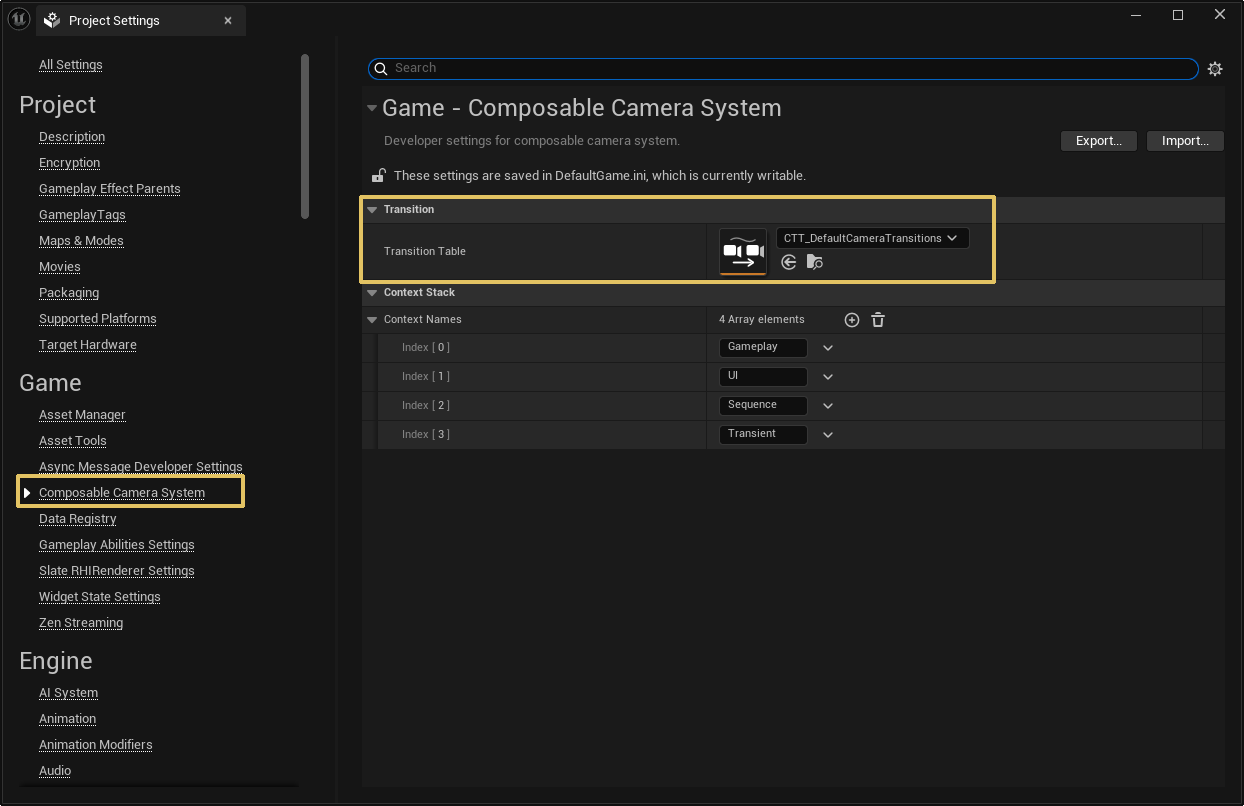
- Caller-supplied override — the
TransitionOverridepin onActivate Camera,TerminateCurrentCamera, andPopCameraContext.
At activation, the PCM walks these in priority order — caller override first, then table, then source's ExitTransition, then target's EnterTransition. The first non-null result wins. If none produces a transition, the activation is a hard cut.
Five-tier resolution chain in practice
Think of the chain as a cascade of defaults, most-specific first:
Caller override       specific to this exact activation call
   ↓ (not provided)
Transition table      specific to this exact (source, target) pair
   ↓ (no matching entry)
Source ExitTransition  specific to this source camera
   ↓ (source didn't set one)
Target EnterTransition  specific to this target camera
   ↓ (target didn't set one)
Hard cut               fallback — the new camera appears instantly
The design intent: each tier is for a narrower scope than the one below it. Authors set per-camera defaults on most assets; specific pair-routing goes in the table when two particular cameras need a different blend than either's defaults; caller overrides cover one-shot gameplay events.
When to set what
- Always set
EnterTransitionon every type asset. This is the most general catch-all and avoids accidental hard cuts. - Set
ExitTransitiononly when the camera needs a specific outgoing blend regardless of destination. Typical users: cutscene cameras, puzzle cameras, UI overlays — cameras whose exit semantics are fixed. - Use the transition table sparingly. It's for genuinely pair-specific routing — e.g. "the transition between
CT_AimDownSightsandCT_CinematicIntroneeds to be a long swoop because both are cinematic, but every other entry toCT_CinematicIntroshould use its ownEnterTransition." Avoid populating the table with what should really be per-camera defaults. - Reach for the caller override for one-shot events. "This particular story trigger needs a slower-than-usual pop back to gameplay, because the player is supposed to feel the shock." Ten such events belong as ten caller overrides. Dozens of them belong in the transition table.
No wildcards in the transition table
The table deliberately does not support wildcards like (AnyCamera, CutsceneA) → SpecialBlend. Once wildcards exist, they silently shadow the per-camera EnterTransition / ExitTransition defaults — every author then has to remember whether a wildcard exists before setting their own defaults. Per-camera defaults (tiers 3 and 4) already cover the "always leave / enter this camera a certain way" intent without that footgun.
Authoring the transition table
The transition table is a single UComposableCameraTransitionTableDataAsset. Create one via Content Browser → right-click → Composable Camera System → Transition Table.
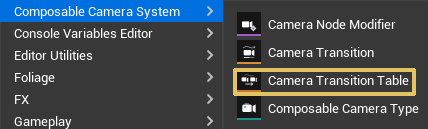 Open it. The Details panel shows a single
 Entries array. Each entry is a (SourceTypeAsset, TargetTypeAsset, Transition) triple:
- SourceTypeAsset (soft ref, required) — the camera being left.
- TargetTypeAsset (soft ref, required) — the camera being entered.
- Transition (instanced) — the transition object to use for that exact pair.
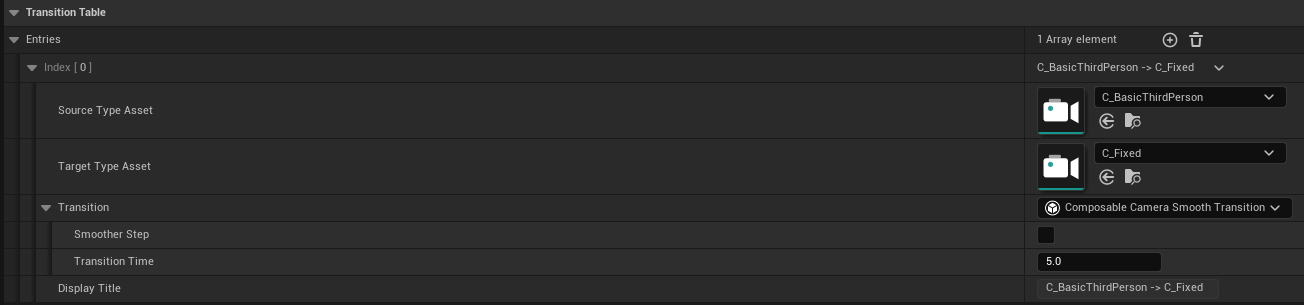 Entries are exact-match — both source and target must match for the entry to fire. No wildcards, no globbing. First matching entry in declaration order wins, so if you add two entries for the same pair, only the first one is used.
After populating the table, wire it into Project Settings → ComposableCameraSystem → TransitionTable. The setting is a soft reference; the PCM loads the table on boot and uses it for every subsequent activation.
The table's editor runs a validation pass on save: null source or target emits an error (the entry is ignored at runtime), null transition emits a warning (the entry falls through to the next tier as if it weren't there). Inline warnings appear in the Details panel, not just in the Output Log.
Transitions as standalone data assets
Sometimes you want to reference a configured transition from multiple places — a TransitionOverride wired to three different BP nodes, or a transition used both in a table entry and on a type asset's EnterTransition. Rather than duplicating the configured transition at each site, wrap it in a Transition Data Asset:
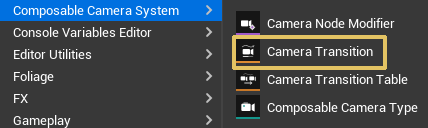 1. Content Browser → right-click → **Composable Camera System → Camera Transition.
2. Set its inner
1. Content Browser → right-click → **Composable Camera System → Camera Transition.
2. Set its inner Transition to an instanced transition of the desired class (e.g. InertializedTransition with Transition Time = 0.8).
3. Reference the data asset wherever a transition is expected.
 The K2 node's
 Transition Override pin accepts a UComposableCameraTransitionDataAsset*; the transition table's entries can also hold data asset wrappers. This keeps configuration in one place — tune the asset once, and every referencing site updates.
Multi-camera blends
Because transitions are pose-only and cannot see what's happening above them, several non-obvious patterns work "for free":
- Blending in the middle of another blend. If you activate camera C while a blend from A to B is in progress, the tree's inner node for the A→B blend becomes the source of a new A→B→C blend. The new transition's left input is the live blended pose of A→B; it doesn't know or care.
- Blending across a context pop. Popping from a cutscene context back to gameplay runs the chosen transition with the outgoing cutscene director evaluating live through a reference leaf. See Concepts → Context Stack for the mechanics.
- Pausing a camera mid-blend. If the source camera's node evaluation is suspended (e.g. by gameplay logic), the transition wouldn't notice as long as it still receives a pose — which the source still emits even when paused.
None of these patterns need special-case transition types. Any transition — linear, inertialized, spline, custom — works in any of them, because each only sees two poses and a blend percentage.
Common pitfalls
- A transition that feels "kinked" at the start usually means the source camera was mid-motion but the transition doesn't use
InitParams. Switch toInertializedTransition, or author a custom transition that readsPreviousSourcePoseandCurrentSourcePosefromFComposableCameraTransitionInitParams. - A transition that doesn't fire — activation appears to hard-cut — means none of the five tiers resolved a transition. Check that something is set: the target's
EnterTransitionis the usual catch-all. - The wrong transition fires when a table entry is present — the table is walked in declaration order; an earlier entry for a superset pair may be winning. Reorder entries, or remove the more-general one.
- A transition overshoots the target — this is the inertialized transition's 5th-order polynomial responding to a large initial velocity in a short requested duration. Either raise
TransitionDuration, or lowerMaxAccelerationso the auto-extend kicks in and gives the blend more time.
Authoring your own transition
If none of the shipped transitions cover your case, writing a new one is a small, self-contained task. Subclass UComposableCameraTransitionBase, override OnBeginPlay, OnEvaluate, and (if applicable) OnFinished. Your OnEvaluate receives two poses and a blend percentage, and returns a pose. The engine handles tree rewriting, collapse, cross-context fan-out, and GC.
See Extending → Custom Transitions for the full recipe, including the InitParams handling pattern for velocity-aware blends.
Next: the Reference catalog of every shipped node, transition, and modifier — with authored descriptions of when to use each.